

Fehlzeiten
Verwaltung → Planung → Fehlzeiten
This screen has three tabs:
| Tab | Purpose |
|---|---|
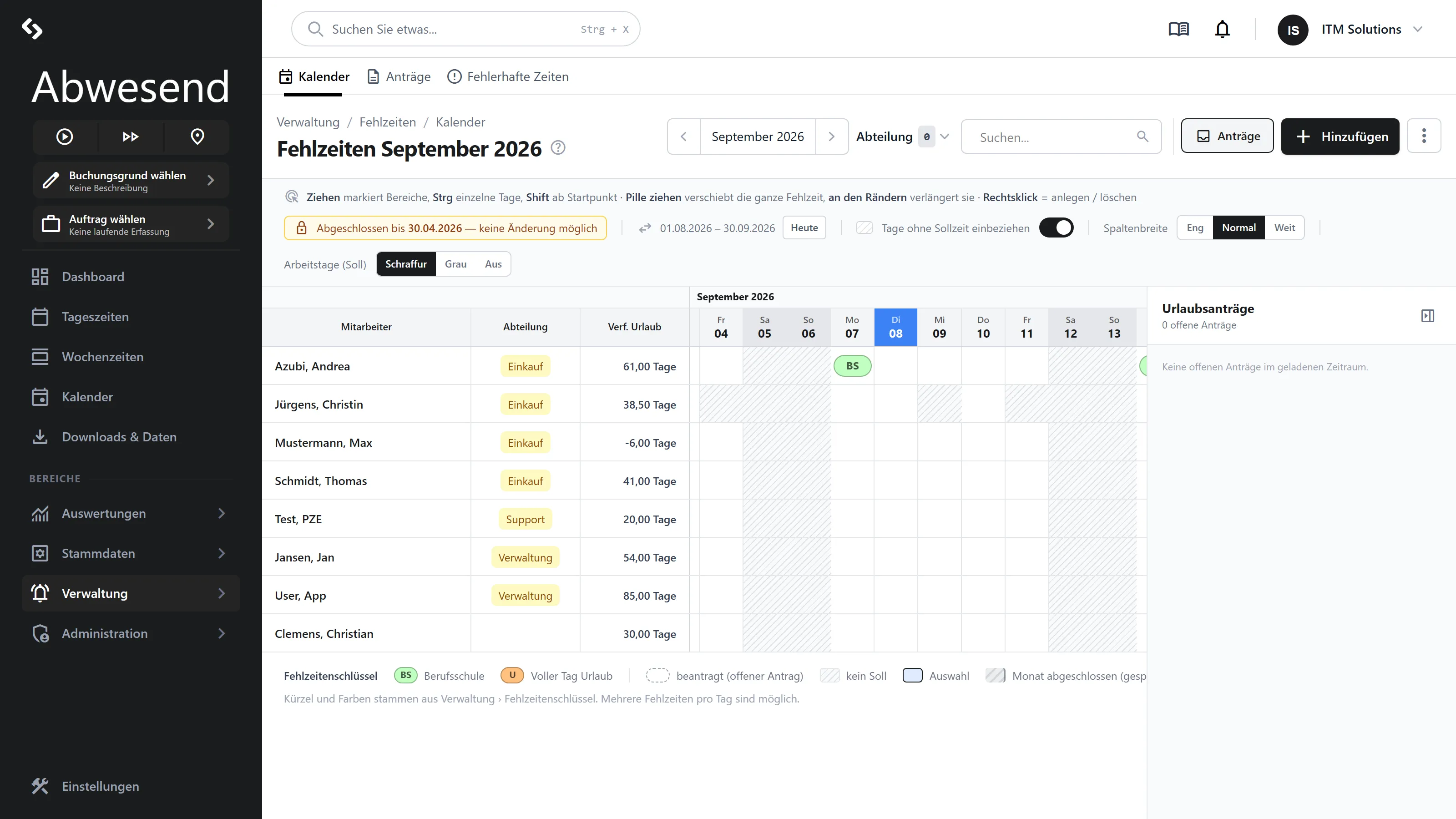
| Kalender | A monthly grid of all employees. Record, move and approve absences. |
| Anträge | The list of absence requests. Approve and reject them. |
| Fehlerhafte Zeiten | Every problem the system has found with times — and the way to fix it. |
Who may approve?
Section titled “Who may approve?”Kalender
Section titled “Kalender”One row per employee, one column per day. Colored bars are absences.
Header row: the Abteilung filter, a search field, the month picker, Hinzufügen. On
the left of each row: Mitarbeiter, available leave and the department.
One continuous timeline
Section titled “One continuous timeline”The calendar is not a month sheet: you scroll horizontally, and as soon as you reach either end the view loads the next or previous month and appends it. A band above the column headers tells you which month you are in; a heavier line marks the month boundary.
That is the reason for the change: a holiday from 29 July to 2 August is now one bar that you can see, move and delete as a whole — instead of two fragments in two views.
The month picker no longer limits anything, it jumps: the timeline starts fresh at the month you pick. Heute in the hint bar brings today back into view. The timeline grows to a bit over a year at a time; to go further, jump with the month picker.
Spaltenbreite (column width: Eng · Normal · Weit — narrow, normal, wide) sets how wide a
day is drawn: Eng to survey many months at once, Weit to work on individual days.
Colors and markers
Section titled “Colors and markers”A bar’s color comes from its Fehlzeitenschlüssel (absence code) and is freely configurable (Stammdaten → Fehlzeiten → Fehlzeitenschlüssel → Farbe). So “green” and “red” have no fixed meaning — your Mandant (your company in the system) decides that.
| Marker | Meaning |
|---|---|
| Pulsing red dot | Beantragt — waiting for approval. |
| Grayed out, pale | Automatisch generiert — created by a Fehlzeitenregel (absence rule). |
| Red border | The entry you have just been linked to. |
Working in the Kalender tab
Section titled “Working in the Kalender tab”The right-click is your main tool here. What the menu offers depends on the bar:
| Right-click on | Entries |
|---|---|
| Empty space | Hinzufügen |
| A requested absence | Akzeptieren, Ablehnen, Löschen |
| A generated, active absence | Deaktivieren |
| A generated, deactivated absence | Aktivieren |
| Everything else | … komplett löschen, Löschen |
Dragging across empty cells selects a range of people × days. Hinzufügen then takes that selection straight into the dialog.
Moving a whole bar: grab it and drag — the cursor turns into a hand. While you drag, a preview shows where the bar will land; it keeps its length and its offset to the mouse pointer. Dragging up or down moves the absence to another person. If the target days already carry the same absence, the preview turns red and nothing happens — a bar always moves as a whole or not at all. Esc cancels.
Making a bar longer or shorter: both ends carry a slim handle that appears when you hover the bar. Drag one and only that end moves — the preview shows the resulting duration in days. Days that are added get created, days that fall outside get deleted. Drag up to a neighbouring absence of the same kind and the two grow together into one bar.
Deleting a whole bar: right-click it and choose „… komplett löschen” (delete entirely). This removes the complete uninterrupted period in one go — including the days that are not visible in the month you are looking at. A holiday from 29 July to 2 August therefore disappears completely, no matter whether you are on July or on August. To remove single days, keep using the selection and Fehlzeiten löschen.
The request panel
Section titled “The request panel”The Urlaubsanträge panel sits on the right of the calendar. The Anträge button in the header shows and hides it; the red number next to it only appears when something is actually pending.
Clicking a request card marks the requested days in the grid, so you can see what you are deciding on. Akzeptieren turns it into a real absence and the dashed bar becomes solid. Decided requests drop to the bottom of the panel under Bearbeitet, carrying their status.
Recording an absence
Section titled “Recording an absence”Hinzufügen opens the request wizard:
| Field | Required |
|---|---|
Urlaubsart | yes — the type of absence. |
Start / Ende | yes |
Mitarbeiter | yes, at least one person. |
Anträge
Section titled “Anträge”The list of all absence requests.
| Column | Meaning |
|---|---|
Mitarbeiter | Who submitted the request. |
Von - Bis | The period. |
Tage | Number of days. |
Fehlzeit | The type. |
Bemerkung | The note to the supervisors. |
Genehmiger | Who approved. |
Angelegt | When it was submitted. |
The Status pre-filter is set to Beantragt — that is, to what needs your
attention. Further options: Abgelehnt, TeilweiseAkzeptiert, Akzeptiert.
Context menu: Annehmen, Ablehnen, Details (jumps to the Kalender and marks the entry in red).
Fehlerhafte Zeiten
Section titled “Fehlerhafte Zeiten”This list is your daily worklist: everything the system objects to about times.
| Column | Meaning |
|---|---|
Personalnummer, Mitarbeiter, Abteilung | Who it concerns. |
Beschreibung | What the problem is. |
Datum | Which day. |
Minuten | How large the deviation is. |
Klasse | The kind of problem. |
The Klasse tells you what to do:
| Klasse | Meaning | Fix |
|---|---|---|
PZE | Open or missing Personalzeiten, or Soll > Ist. | Add the Personalzeit, or record an absence. |
AZE | Too little attendance distributed across orders. | Book Auftragszeiten afterwards. |
Mehrarbeit | Non-evaluated time above the threshold — excluding the break deduction. | Set Mehrarbeitsfreigabe — if that is what you want. |
The + expands the details of the day: evaluated and non-evaluated Personalzeiten, Auftragszeiten, and a Tagesauswertung öffnen button.
Context menu: Personalzeit → Hinzufügen, Personalzeit → Mehrarbeitsfreigabe, Fehlzeit → Hinzufügen, Sonstiges → Tagesauswertung öffnen.
Once you have fixed it, the row disappears immediately — the list reloads on its own.
Understanding the Urlaubskonto
Section titled “Understanding the Urlaubskonto”The Verf. Urlaub value in the Kalender is worked out like this:
-
The starting point is the Jahresurlaub from the employee master data.
-
If a closed month exists, the frozen leave balance held there is used instead.
-
From that, all absences after that month are deducted, provided their Fehlzeitenschlüssel affects the Urlaubskonto — whole days or half days, depending on the code’s Ausgleichsart.
-
Manual corrections (transfers onto the Urlaubskonto) are added.
-
If a Jahresurlaubs-Monat is configured and has passed, the annual leave entitlement is added again.
Screenshots are taken from a test tenant and show sample data. Your interface may differ depending on role, licence and configuration.