

Fehlzeiten-Auswertung
Auswertungen → Fehlzeiten → Fehlzeiten-Auswertung
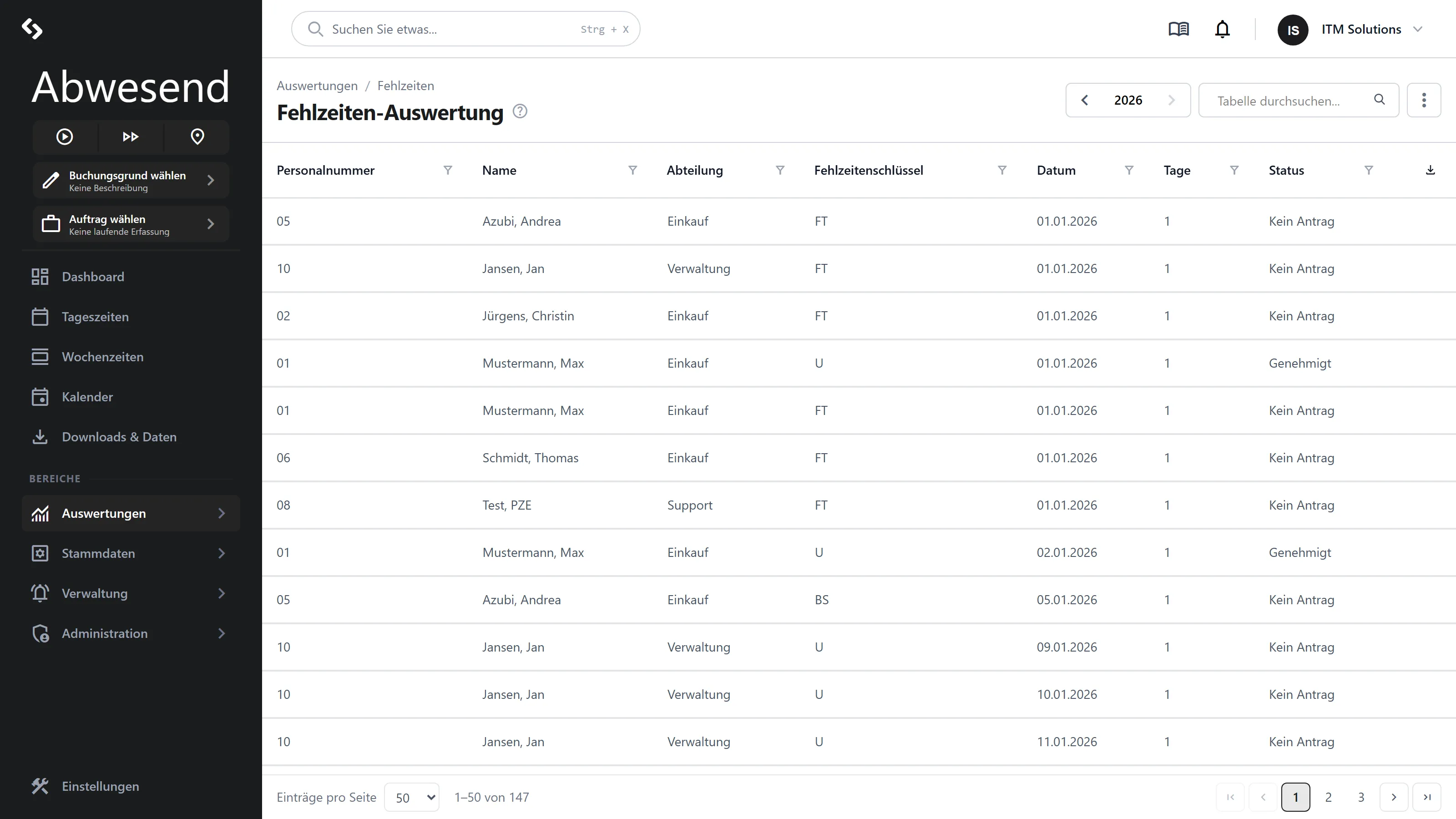
One row per absence day, for a whole year, across everyone in your area of responsibility. This screen answers: “Who was absent when, under which key — and how many days does that add up to?”
It is the list view of what the Fehlzeitenkalender shows as a grid. The same data, a different question: the calendar is for planning and entering, this screen is for counting and passing on.
Choosing the year
Section titled “Choosing the year”A year picker sits in the header: ‹ 2026 ›. It opens on the current year.
The arrows only lead into years that actually contain absences — at the edge of your data they turn grey. So if your records go back only as far as 2024, you cannot wander into an empty 2019 by accident.
The columns
Section titled “The columns”| Column | Meaning |
|---|---|
| Personalnummer | The personnel number from the master data. |
| Name | Surname, first name. |
| Abteilung | The person’s department. Stand-in assignments do not count as membership here. |
| Fehlzeitenschlüssel | The key the day was entered under — Urlaub, Krankheit, whatever is configured in your system. |
| Datum | The individual day. |
| Tage | How much this day counts: 1 or 0,5. |
| Status | Where the day stands in the approval process. |
Why “Tage” rather than just counting rows
Section titled “Why “Tage” rather than just counting rows”A half day of leave is a row of its own — count rows and it would come out as a full day. Hence the Tage column.
Where the value comes from is decided by the Fehlzeitenschlüssel in the master data, through its Ausgleichen setting:
- full day → 1
- half day → 0,5
- fixed compensation in minutes → 0, the day does not count as an absence
In the export the column can therefore be summed directly.
The Status values
Section titled “The Status values”Kein Antrag · Beantragt · Genehmigt · Personalzeit vorhanden
Rejected requests do not appear here. Something a person applied for and did not get is not an absence — the list shows only what actually stands, or what is still awaiting a decision.
Showing the change data
Section titled “Showing the change data”The ⋮ menu at the top right adds four more columns: Angelegt am, Angelegt durch,
Bearbeitet am, Bearbeitet von.
Useful when the question is who entered a day, or moved it afterwards. A second click hides them again.
Searching, filtering, sorting
Section titled “Searching, filtering, sorting”The search bar covers the Personalnummer, first and surname, and the name of the Fehlzeitenschlüssel.
Every column additionally has its own filter icon, and clicking a column heading sorts. Without a sort of your own the list runs chronologically, and by name within a day.
On the Datum column you can set two conditions — größer oder gleich and kleiner oder gleich. That narrows the list to any period within the year.
Handing it to Excel
Section titled “Handing it to Excel”The download icon above the table produces a CSV file named after the year — for
example fehlzeiten-2026.csv.
Two things that often surprise people, and that work correctly here:
- What gets exported is the entire filtered set, not just the page you are looking at. With 40 visible rows and 3,000 matches, the file holds 3,000 rows.
- The file is semicolon-separated and written with German encoding. It opens correctly in
Excel straight away, with umlauts intact and
0,5as a number.
Everything you set beforehand — year, column filters, search — applies to the export as well. If you want only the sick days of one department, filter first and export afterwards.
Typical questions
Section titled “Typical questions””How often was Mr Meier off sick between March and June?”
Section titled “”How often was Mr Meier off sick between March and June?””- Set the year picker in the header to 2026.
- Filter icon on the Name column → enthält
Meier. - Filter icon on the Fehlzeitenschlüssel column → enthält
Krank. - Filter icon on the Datum column → two conditions: größer oder gleich
01.03.2026and kleiner oder gleich30.06.2026.
What remains is exactly that person’s sick days in that period. Summing the Tage column gives the number of sick days.
”How many days of leave did Fertigung take this year?”
Section titled “”How many days of leave did Fertigung take this year?””Abteilung column → enthält Fertigung, Fehlzeitenschlüssel column → enthält
Urlaub. Then export and sum the Tage column in Excel.
For reconciliation against remaining leave, however, the Urlaubskonto is the authoritative source — see the note above on the Tage column.
”Which requests are still undecided?”
Section titled “”Which requests are still undecided?””Status column → ist gleich Beantragt. The result: every day someone applied for
that is still awaiting a decision. You decide them in the
Fehlzeitenkalender.
”Who took time off around Ascension Day?”
Section titled “”Who took time off around Ascension Day?””Datum column → größer oder gleich 14.05.2026 and kleiner oder gleich 17.05.2026.
Sort by Abteilung and you can see, bridge day by bridge day, where cover gets thin.
”Was an absence changed after the fact?”
Section titled “”Was an absence changed after the fact?””Show the change data via the ⋮ menu, then sort by Bearbeitet am. The most recently touched entries appear at the top, with the name in Bearbeitet von.
What this screen cannot do
Section titled “What this screen cannot do”This screen is read-only. There is no adding, no editing, no deleting — and no right-click menu either.
Absences are maintained in the Fehlzeitenkalender; requests are decided there too.
Screenshots are taken from a test tenant and show sample data. Your interface may differ depending on role, licence and configuration.