

Mitarbeiter Auswertung
Verwaltung → Auswertung → Mitarbeiter Auswertung
One row per employee, for one month. This screen answers: “How does each person stand this month — target met? Flexitime balance? Account balances? Remaining holiday?”
It is also the place where the month is calculated, closed and exported to DATEV. There is deliberately no employee filter — you always see every person visible to you.
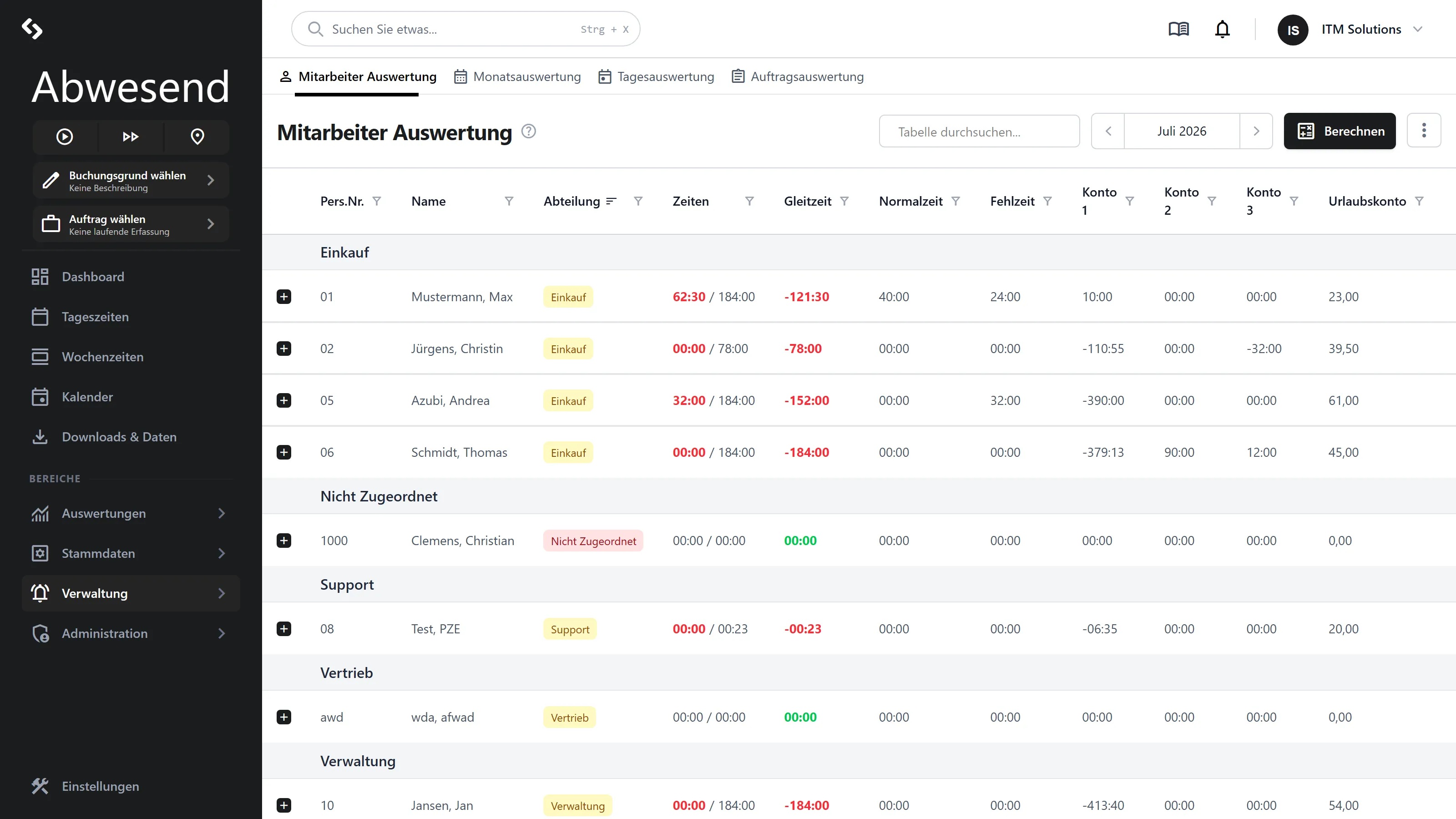
The columns
Section titled “The columns”| Column | Meaning |
|---|---|
Pers.Nr. | Personnel number. |
Name | The employee’s search abbreviation. |
Abteilung | Shown as a badge. Without an assignment, a red Nicht Zugeordnet appears. |
Zeiten | Ist / Soll (actual / target). Red if the target has not been reached; green if it has been exceeded. |
Gleitzeit | The balance for the month. Red if negative. |
Normalzeit | Total of the Normalzeit portions. |
Fehlzeit | Total of the evaluated absences (Urlaub, Krank …). |
Konto 1 to Konto 3 | Account balances including the carry-over from the previous month. |
Urlaubskonto | Remaining holiday in days — not in hours. |
How time values are displayed is your choice under Einstellungen: either as Normalstunden
(01:30) or as Industrieminuten (1,50). The choice applies to every view. The Urlaubskonto
does not follow it — holiday is kept in days and stays a decimal figure.
By default, the list is grouped by Abteilung.
The month: calculating and closing
Section titled “The month: calculating and closing”Badges in the top right show the state of the selected month:
| Badge | Meaning |
|---|---|
Korrigierbar (yellow) | The last closed month. Only Nachkorrektur is still possible. |
Abgeschlossen (red) | The month is closed. No full editing any more. |
Berechnen
Section titled “Berechnen”The Berechnen button recalculates the monthly result for all employees. It is locked when the month is closed.
Monat abschließen
Section titled “Monat abschließen”In the ⋮ Aktionen menu → Monat abschließen.
DATEV-Export
Section titled “DATEV-Export”In the ⋮ Aktionen menu → DATEV-Export. This opens a dialog with three target formats:
| Tile | Meaning |
|---|---|
| DATEV (LuG) | Lohn und Gehalt (payroll and salary). |
| DATEV (LODAS) | LODAS. |
| DATEV-Profile | Export via the configured export profiles. |
The monthly result is updated automatically before the export. The result is a file
Zeiterfassung_Export_JJJJMM.dat.
Correcting
Section titled “Correcting”The context menu of a row depends on whether the month is open.
Month open:
| Group | Entry | Purpose |
|---|---|---|
Buchungskonten | Umbuchen | Move time from one account to another, using an Umbuchungsschlüssel (transfer key). |
Korrektur | Urlaubskonto | Correct holiday days directly. |
Korrektur | Konto 1, Konto 2, Konto 3 | Correct the account balance directly. |
Month closed and it is the last one: only Nachkorrektur.
Month closed, but not the last one: no context menu.
What you enter in the dialog
Section titled “What you enter in the dialog”Umbuchung and Korrektur share the same two fields: the amount you enter on the left, and the
target amount on the right. The dialog works the latter out as amount × Faktor itself,
which is why the field cannot be typed into. Bemerkung is a mandatory field — no transfer
without a reason.
The unit follows the account
Section titled “The unit follows the account”How you may write it
Section titled “How you may write it”Time fields (Konto 1–3) understand both notations — regardless of which one you picked under Einstellungen:
| Input | Meaning |
|---|---|
1:45, 01:45 | one hour and 45 minutes |
1,75, 1.75 | the same, as decimal hours |
2 | two hours |
-1:30, -1,5 | subtract one and a half hours |
25:00 | 25 hours — durations beyond a single day are allowed |
A trailing h or Std is tolerated. The value is then displayed in your chosen format. Whatever
the field cannot read is discarded and the last valid value restored — an unreadable entry is
therefore never booked silently.
Day fields (Urlaubskonto) take a plain decimal figure:
| Input | Meaning |
|---|---|
3 | three holiday days |
0,5, 0.5 | half a holiday day |
-1 | subtract one holiday day |
Dot and comma count equally as the decimal separator everywhere — the dot is quicker on the
numeric keypad. There is no thousands separator in return: 1.5 is one and a half, not fifteen
hundred.
Nachkorrektur
Section titled “Nachkorrektur”Only on the last closed month. You enter Konto 1, Konto 2, Konto 3 and Urlaubskonto
directly — the same notations as above apply: the three accounts as a time, the Urlaubskonto in
days. Negative values are allowed in all four fields.
Typical cases
Section titled “Typical cases”Which tool is the right one depends less on what is wrong than on whether the month is still open. The short version:
| You want to … | Month open | Month closed |
|---|---|---|
| record a forgotten Fehlzeit | record the Fehlzeit, then Berechnen | reverse the close |
| straighten out an account balance | Korrektur → Konto/Urlaubskonto | reverse the close |
| move time between accounts | Umbuchen | reverse the close |
| remove a wrong booking | delete the Umbuchung in the drilldown | reverse the close |
Case 1: Forgotten holiday in an open month
Section titled “Case 1: Forgotten holiday in an open month”The easy case — and the one you want to reduce all the others to.
-
Planung → Fehlzeiten: record the holiday in the calendar.
-
Back in the Mitarbeiter Auswertung, select the month and press Berechnen.
-
Check the
Urlaubskontocolumn. In the drilldown the booking then appears as an automatic row with sourceTagesergebnisand targetU.
Do not correct the Urlaubskonto by hand instead: the balance would be right, but the day itself stays empty — in the absence overview, in the wage types and in the DATEV export.
Case 2: Forgotten holiday in a closed month
Section titled “Case 2: Forgotten holiday in a closed month”The most common serious case. The thing to understand: the close locks the absences too. Up to the end of the most recent closed month the calendar accepts no change — it shows „Abgeschlossen bis TT.MM.JJJJ — keine Änderung möglich” at the top. So the days cannot simply be added afterwards; the close has to go first.
-
Stammdaten → Abrechnung → Monatsabschluss, row of the month concerned → context menu → Aufheben.
An older month can only be reversed together with every later close — as long as a later one exists, the older month stays locked. The confirmation lists which months are opened in addition; only confirm once that list is acceptable to you.
-
Planung → Fehlzeiten: record the holiday now. The lock hint in the calendar has disappeared, or moved to an earlier month.
-
Back in the Mitarbeiter Auswertung: select each reopened month individually and in chronological order and press Berechnen. Reversing the close on its own recalculates nothing — without this step the frozen figures stay where they are.
-
Check the result: the
Urlaubskontocolumn and the drilldown of the corrected month. -
Close the months again in the same order — without gaps, each one the direct successor of the last close.
Case 3: The remaining leave is wrong
Section titled “Case 3: The remaining leave is wrong”Not every shortfall comes from a missing Fehlzeit — a carry-over from the previous year, a changed entitlement, a day paid out. Then the direct correction is the right one, because there is no day to record.
In an open month: row context menu → Korrektur → Urlaubskonto → enter the difference in days, with a reason. Then Berechnen.
Case 4: Time from one account to another
Section titled “Case 4: Time from one account to another”Context menu → Umbuchen, pick an Umbuchungsschlüssel, enter the amount. The Schlüssel brings source, target and factor with it; Schlüssel are created under Stammdaten → Abrechnung → Umbuchungsschlüssel.
If there is no suitable Schlüssel, the Korrektur on the target account is the more direct route — it books without a counter-account.
Case 5: Taking back a wrong Umbuchung
Section titled “Case 5: Taking back a wrong Umbuchung”In the drilldown of the row, expand the
Monatsumbuchungen panel and remove the booking with the delete icon. The icon only appears
on manual bookings (Pos ≥ 1); the month is recalculated automatically afterwards.
Automatic bookings (Pos 0 or -1) cannot be deleted — they are recreated on every
Berechnen. If one of them is wrong, the error is in the daily data, not in the booking.
Drilldown: where the numbers come from
Section titled “Drilldown: where the numbers come from”The + on a row expands two panels.
Monatsumbuchungen — every booking that has changed the month:
| Column | Meaning |
|---|---|
Pos. | 0 or -1 = automatic booking, ≥ 1 = manual booking. |
Quelle / Ziel | From which account to which. |
Zeit | The booked amount — in days as soon as the Urlaubskonto (U) is involved, otherwise as a time. |
Bemerkung | Your reason. |
A delete icon appears only for manual bookings (Pos ≥ 1). Automatic bookings are
deleted and recreated on every Berechnen — manual bookings survive. That is why you
cannot delete automatic bookings at all: they would come back with the next calculation
anyway.
When you delete a transfer, the system asks for confirmation („Diese Aktion kann nicht rückgängig gemacht werden.”) and recalculates the month afterwards.
Lohnarten Ergebnis — the breakdown by wage type, with Typ, Summe and Tage.
Screenshots are taken from a test tenant and show sample data. Your interface may differ depending on role, licence and configuration.